The file manager built around filtering

Narrow any folder by type, date, and size all at once. Jump anywhere with fuzzy folder search, hover to preview without opening, and browse two folders side by side. No more digging through endless Finder windows.

Native macOS · App size only 8 MB · 30-day free trial · One-time purchase · Apple Silicon with macOS 12 or later
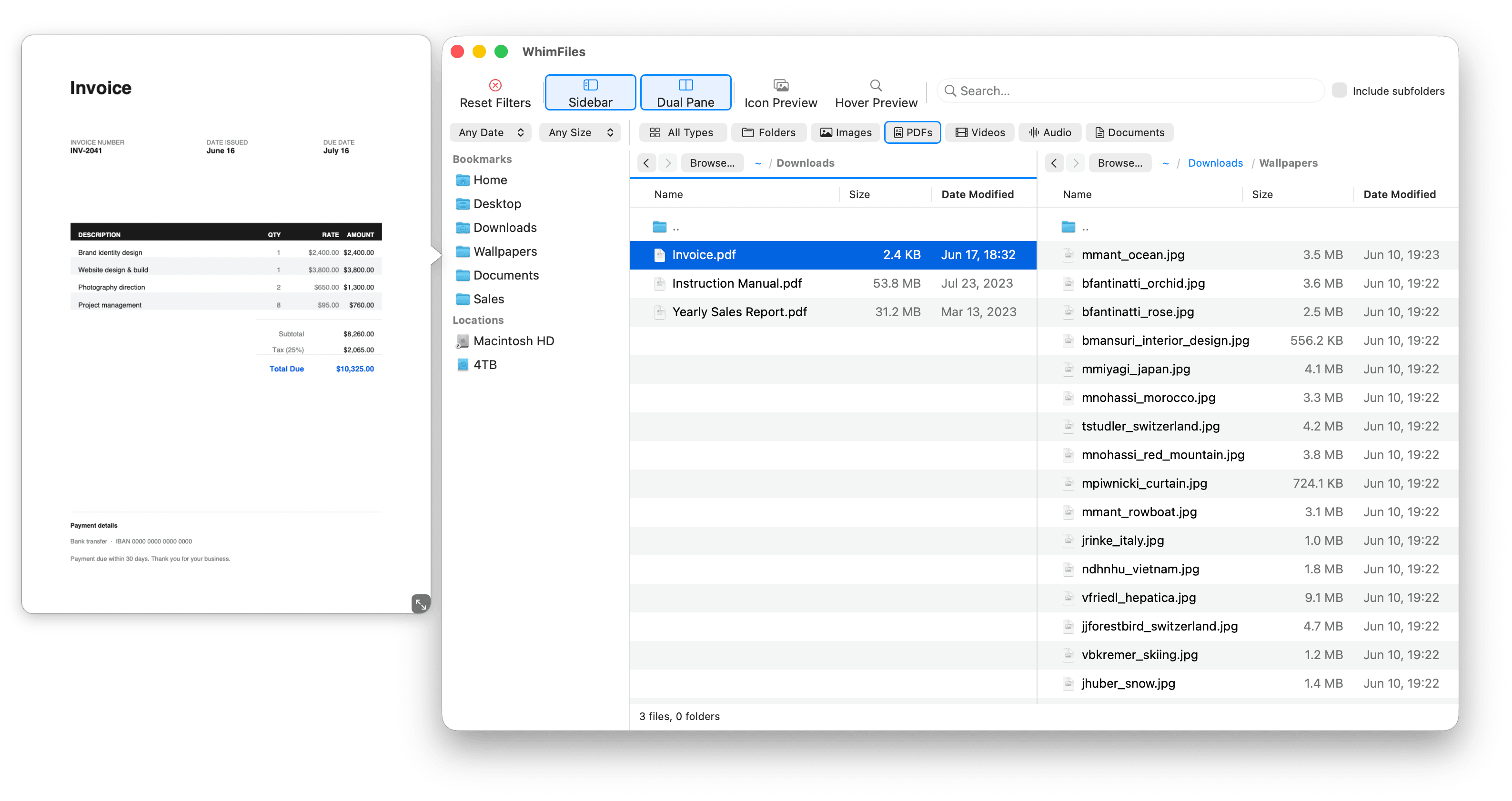
WhimFiles main window, a dual-pane file browser with the real-time filter bar active (type, date, size), breadcrumb path bar, sidebar with bookmarks and volumes, and a hover preview of an image

Explore the features

Powerful filters

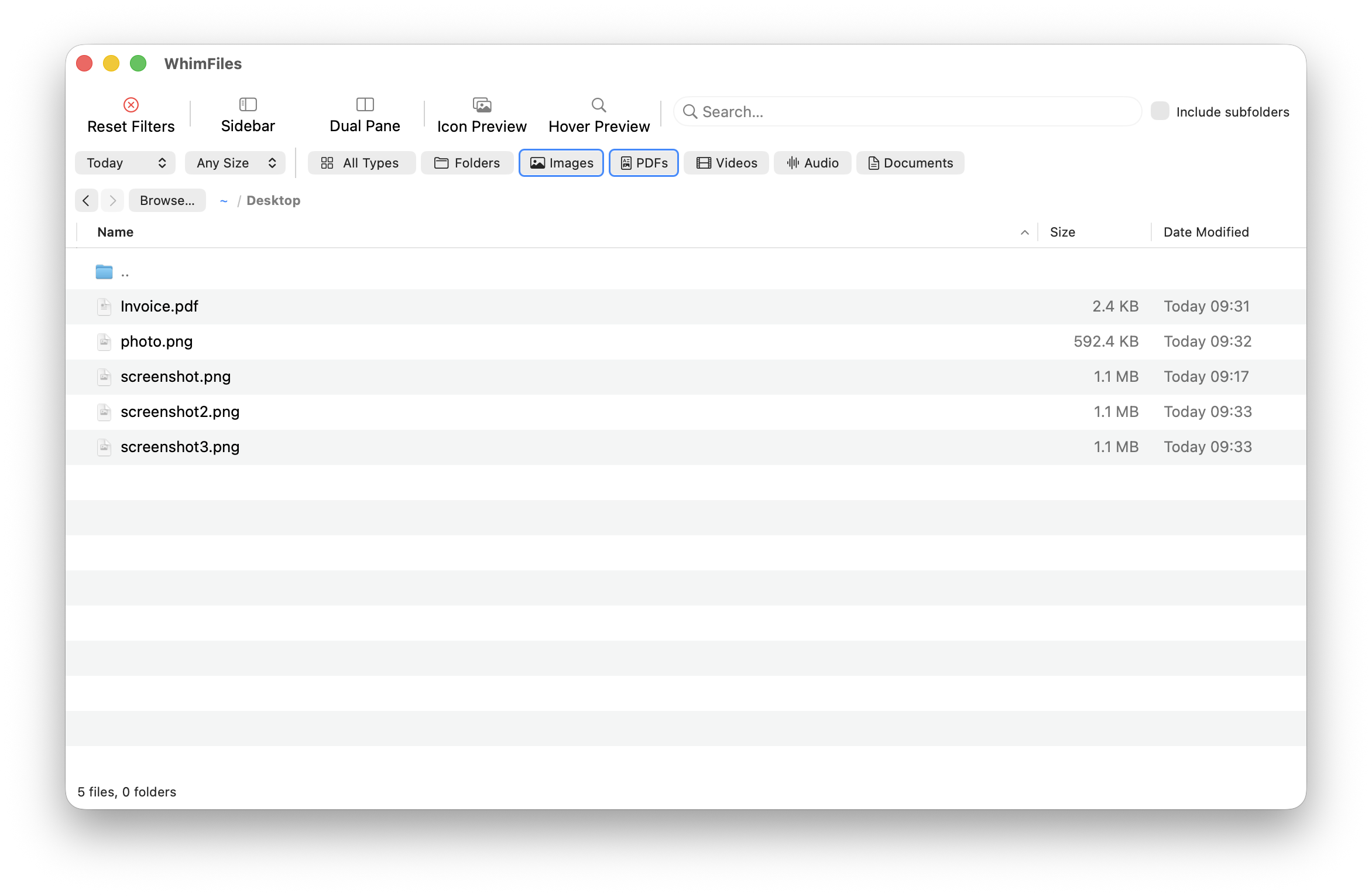
Filter your files in real time by type, date, and size, all at once. Choose from preset categories like Images, PDFs, Videos, and Documents, or define your own custom filters by file extension.


Add a date range, a size limit, and a search term simultaneously. Results update instantly as you type. Toggle recursive search to look inside every subfolder at once.

WhimFiles filter bar with the Today date filter, Small size filter, and Images and PDFs type filters active simultaneously on the Desktop folder

Two folders. One window

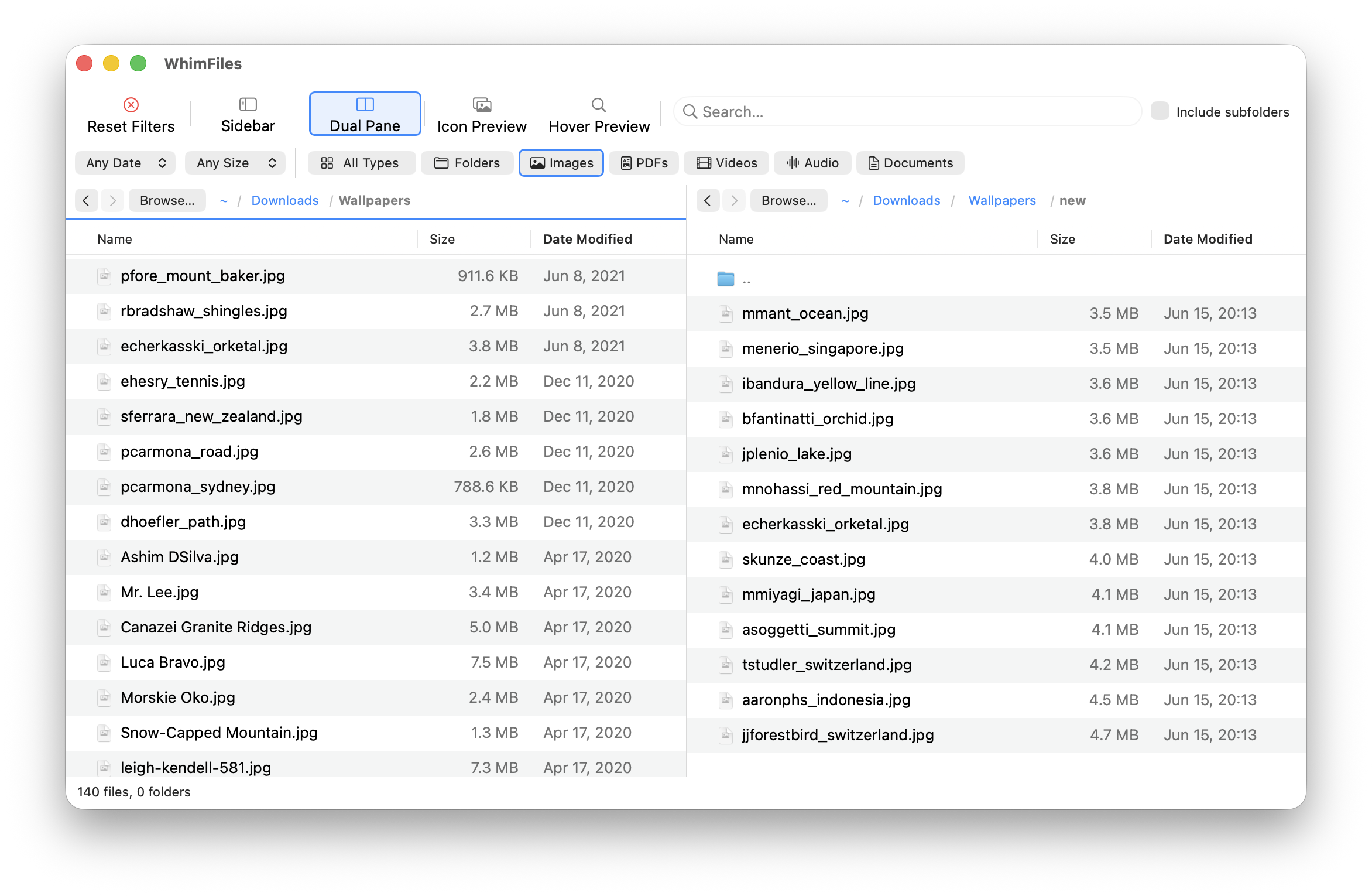
Open two folders side by side and work between them directly. Copy or move files from one pane to the other with a single right-click or use the command palette.


Each pane has its own folder, filters, search, and navigation history.

WhimFiles dual pane with Desktop open on the left and Downloads on the right, and image and PDF type filters active

Get anywhere in seconds

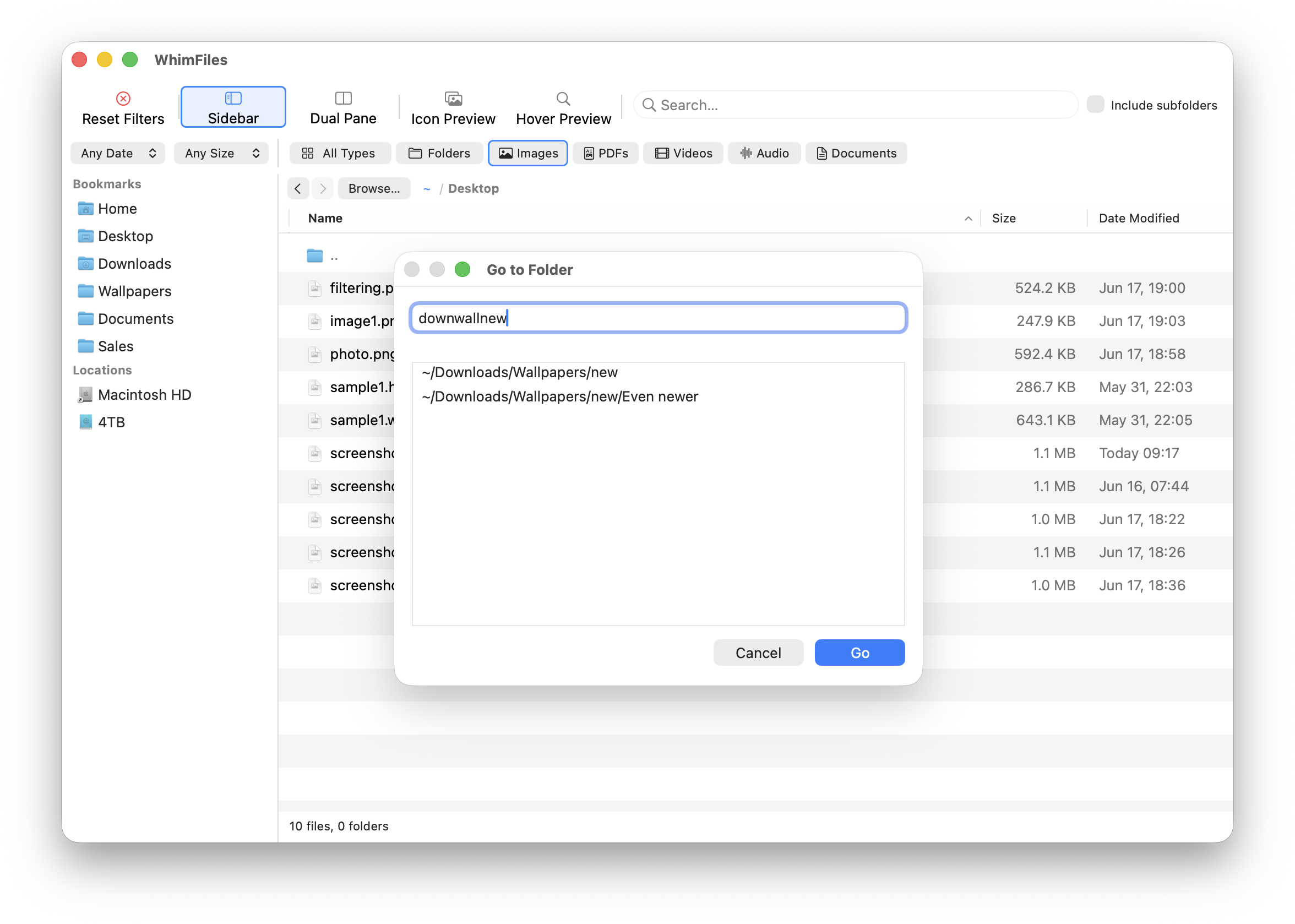
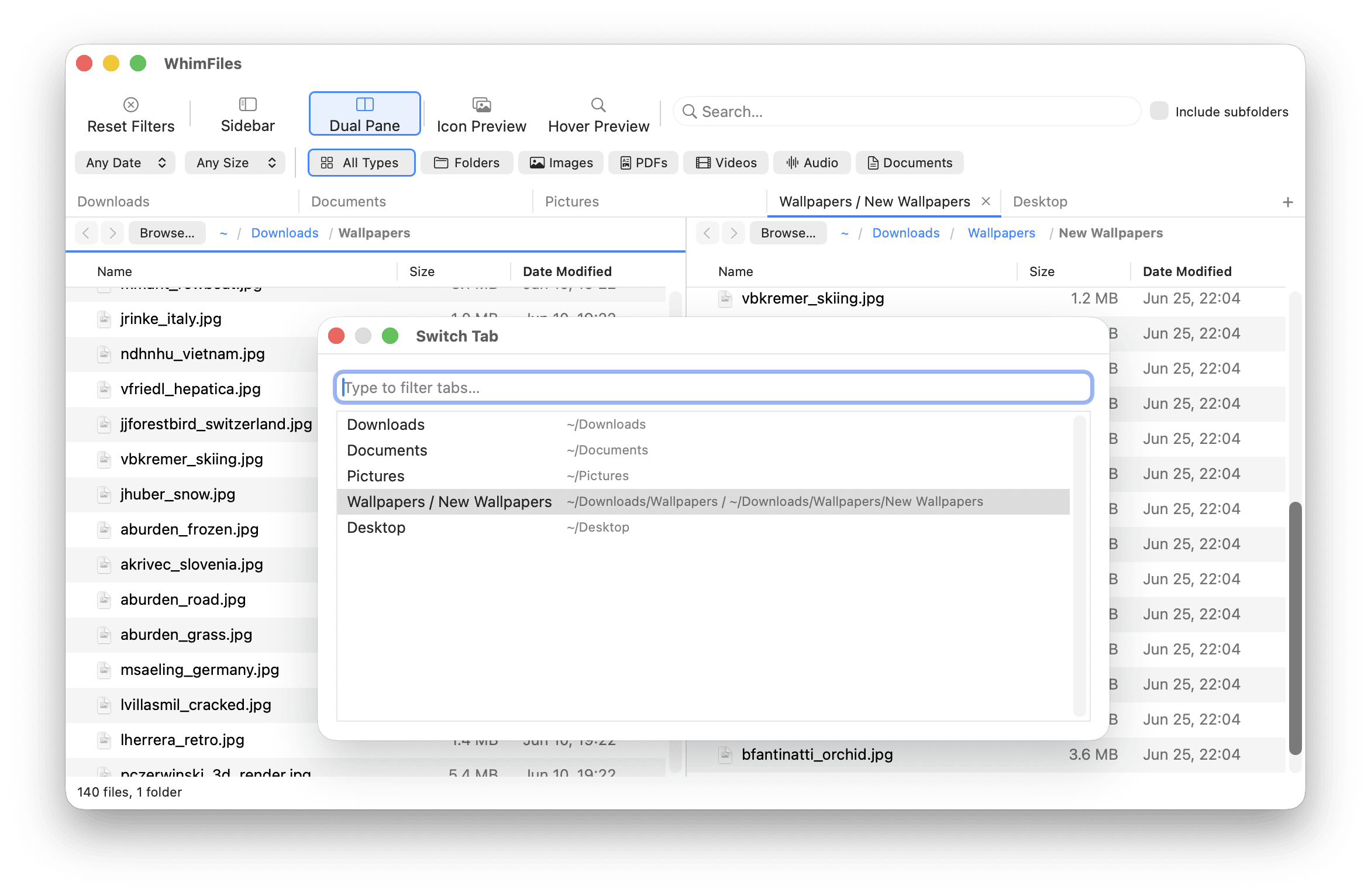
Fuzzy Go to Folder (⌘G) lets you jump to any folder by typing a few letters from the path. Type “downwallnew” to jump to ~/Downloads/Wallpapers/new instantly. Jump to a specific file with ⌘P.


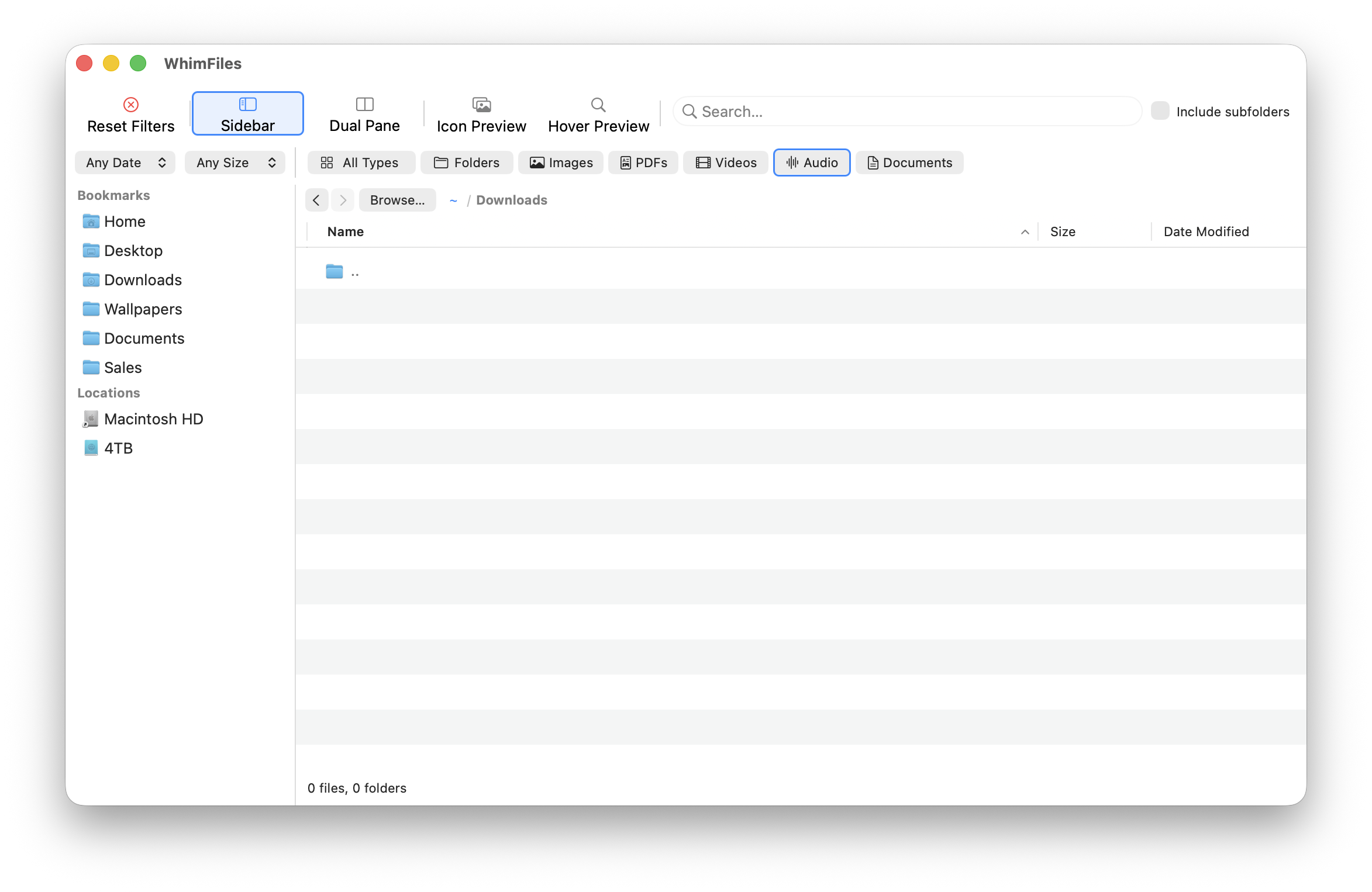
The sidebar shows your bookmarks and all mounted volumes. The breadcrumb path bar lets you click any parent folder to jump up.

WhimFiles Go to Folder prompt fuzzy-matching “downwallnew” to ~/Downloads/Wallpapers/new, with the sidebar of bookmarks and volumes visible behind it

See your files without opening them

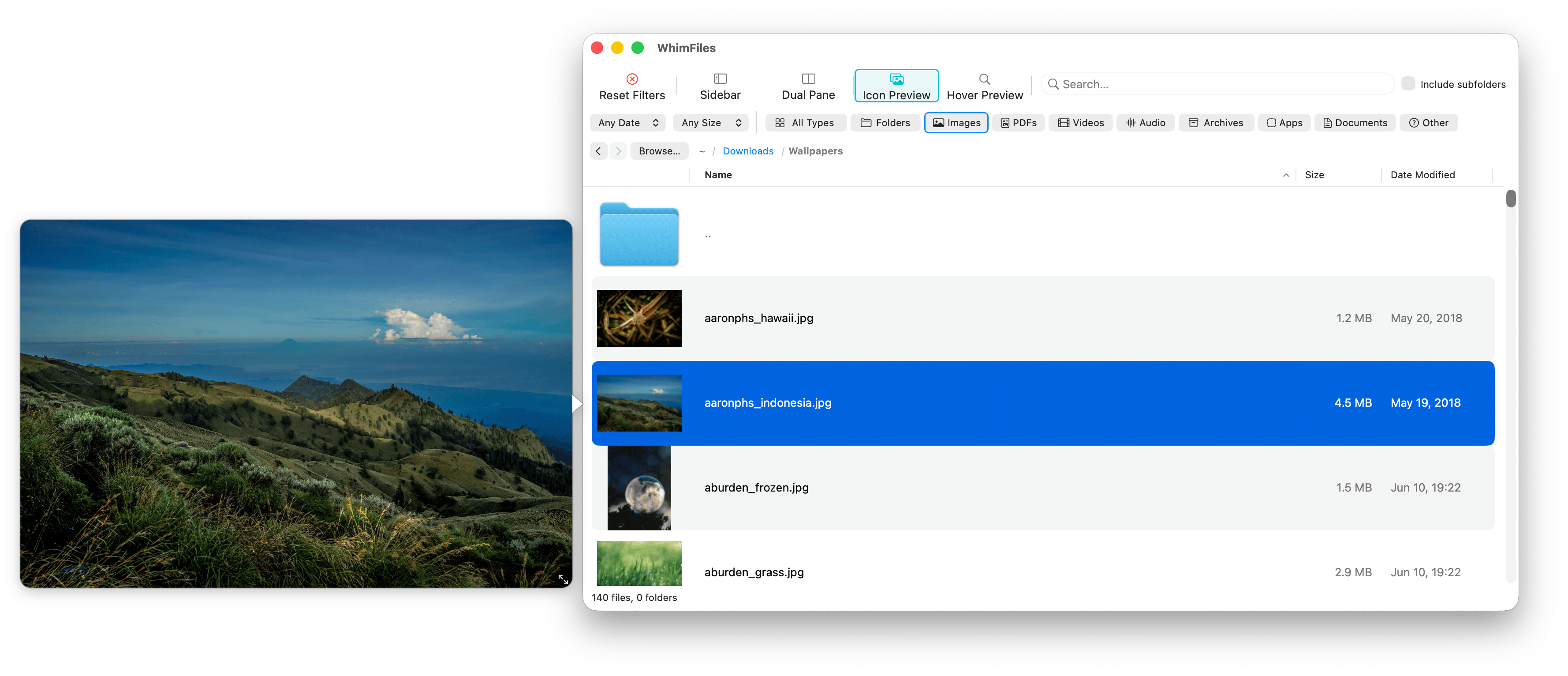
Hover over any image or PDF to see a large floating preview, without clicking or opening another app. Toggle icon preview mode to see thumbnails directly in the file list.


Press Space for native Quick Look with arrow key navigation through the whole list.

WhimFiles with Icon Preview on, showing image thumbnails in the file list and a large hover preview of a landscape photo floating outside the window

Everything you need, right where you are

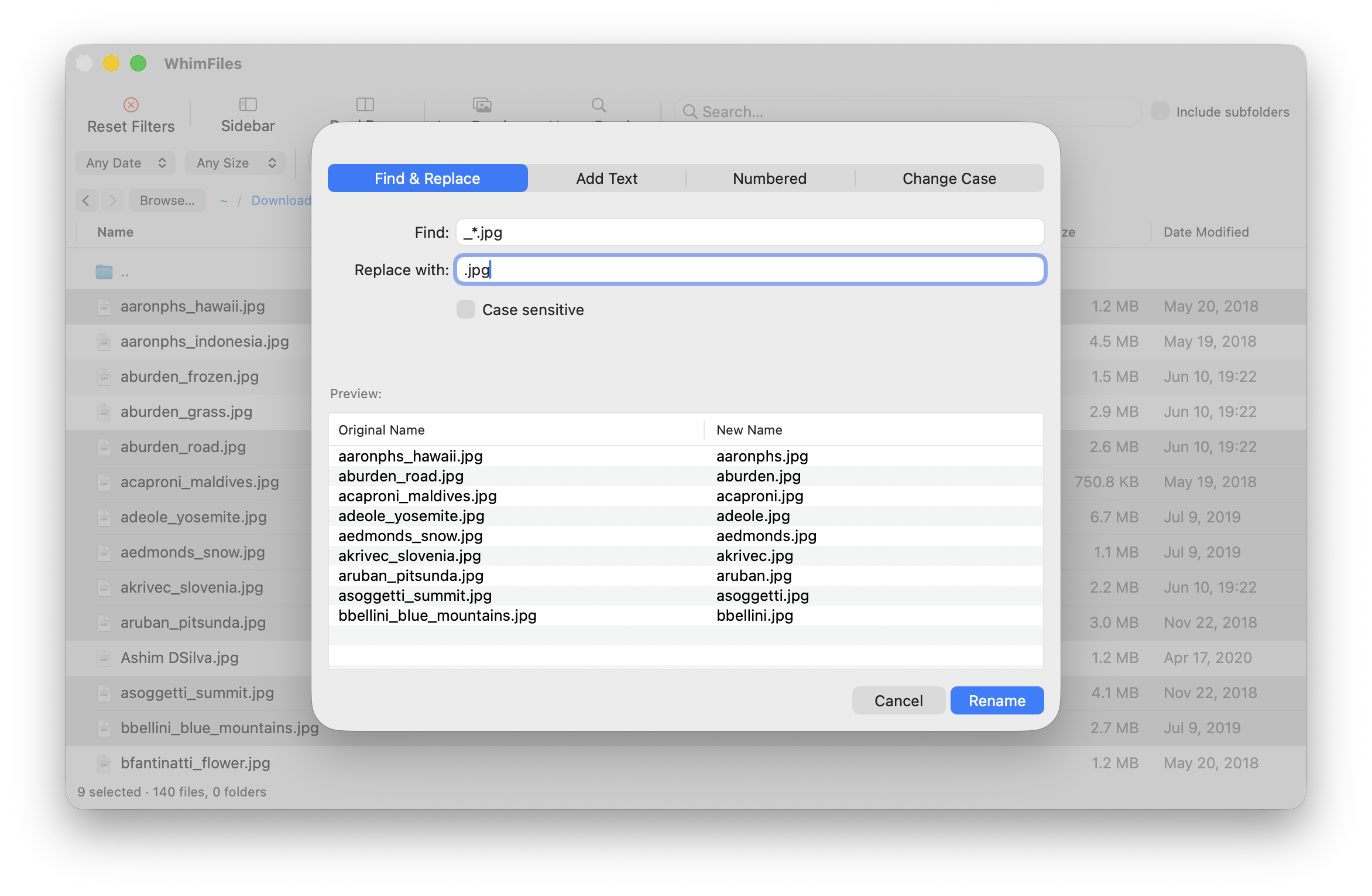
Batch rename multiple files with Find & Replace, sequential numbering, text prefix/suffix, or case change, with a live preview before you commit.


Convert HEIC, WebP, and AVIF images to JPG or PNG directly from the right-click menu. Compress files to ZIP. Undo moves and trash operations. Cut, copy, paste with Finder-style conflict handling.

WhimFiles batch rename sheet on the Find & Replace tab, with a live before-and-after preview of the new file names

Your folders, always within reach

The sidebar shows your bookmarked folders and all mounted volumes (external drives, disk images, and network shares) in a Finder-style source list. Click any location to navigate instantly.


Eject volumes directly from the sidebar. Toggle the sidebar with the toolbar button or ⌥⌘S.

WhimFiles sidebar showing a Bookmarks section (Home, Desktop, Downloads, Wallpapers, Documents, Sales) and a Locations section with the Macintosh HD and 4TB volumes

Built for power users who live in their folders

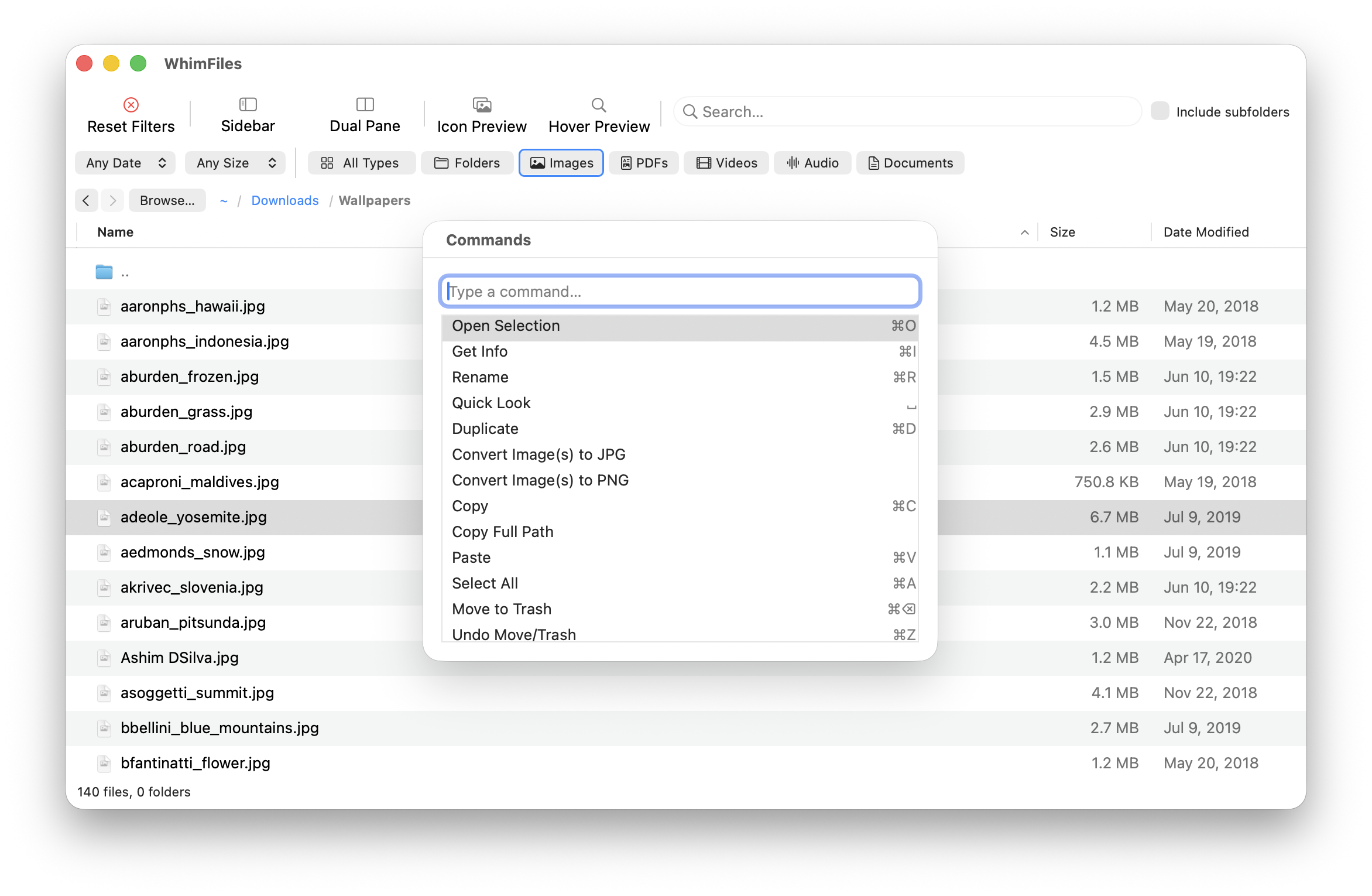
A command palette (⇧⌘A) gives keyboard access to all common actions. Custom type filters let you define your own named file categories. Calculate folder sizes recursively, or enable Always Calculate Folder Sizes to fill the size column automatically. Show hidden files, toggle folders first.

Open any folder from the terminal.

Add a tiny shell function to your shell config and you can open the current folder, or any path, in WhimFiles from the command line.

wf() { open -a WhimFiles "${1:-.}"; }
  1. Add that line to ~/.zshrc (the default shell on modern macOS). If you use bash, add it to ~/.bashrc or ~/.bash_profile instead.
  2. Reload with source ~/.zshrc, or just open a new terminal window.
wf              # open the current folder
wf ~/Downloads  # open a specific folder
WhimFiles command palette open over the file list, listing actions like Get Info, Rename, Quick Look, Convert Image(s) to JPG/PNG, Copy Full Path, and Undo Move/Trash with their keyboard shortcuts

Who is WhimFiles for?

Whether you manage assets, wrangle code, or just can't find anything. WhimFiles gets out of your way and helps you work faster.

🗂Your Downloads folder has 847 files. Let's fix that

You know the feeling. You saved something six months ago and now you can't find it. Finder search is useless and scrolling takes forever. WhimFiles lets you filter by type, date, and size simultaneously, search recursively across every subfolder, and see exactly what's taking up space. What used to take twenty minutes takes thirty seconds.

🎨Your assets, finally under control

You work with hundreds of images, PSDs, fonts, and project files scattered across folders. WhimFiles shows large image thumbnails directly in the file list, converts HEIC, WebP, and AVIF to JPG or PNG with a right-click, and keeps your source folder and export folder open side by side in dual pane. No more hunting through Finder for that one asset.

💻Built for people who live in the terminal

You navigate deep folder structures, jump between project directories constantly, and want keyboard shortcuts for everything. WhimFiles has fuzzy Go to Folder/Go to File so you can jump anywhere by typing a few letters, Open in Terminal on any folder, a command palette, and keyboard shortcuts throughout. Your hands stay on the keyboard.

📸Find the right shot without importing anything

You have thousands of photos across multiple drives and folders. WhimFiles lets you browse any folder with large thumbnails, filter by date to find shots from a specific shoot, preview images instantly on hover, and convert HEIC photos from your iPhone to JPG, all without importing into Photos or Lightroom.

🎬Finally make sense of your media folders

You have movies, series, and downloads spread across multiple drives. WhimFiles lets you browse two drives side by side in dual pane, filter by file type to see only videos or only audio, see file sizes at a glance to manage storage, and use custom filters to show only the formats you care about. Your 4TB drive is no longer a mystery.

File operations made fast and easy

You've outgrown Finder but don't need FTP or remote servers. You want a fast, native file manager for streamlined local file management, with batch rename, undo, command palette, folder size calculation, and a sidebar that shows all your volumes. WhimFiles is that app.

Simple. Fair. Yours forever.

Try it free for 30 days. No credit card required.

Launch price · One-time purchase
$19.99$24.99
Pay once. Use forever. No subscription, ever.
  • 30-day free trial, no credit card needed
  • Real-time filtering by type, date & size
  • Dual-pane browsing with cut, copy & move
  • Batch rename, image conversion & ZIP
  • All future updates included
  • Apple Silicon native - M1 or later

Native macOS · Apple Silicon with macOS 12 or later