Mac file management
How to Clean Your Mac Downloads Folder Without Wasting an Afternoon
Your Downloads folder is probably a disaster
You go looking for one PDF a client sent you back in March. Twenty seconds later you are still scrolling past installers you already ran, files called Screenshot 2026-03-14 at 09.41.22, two copies of the same ZIP, and a pile of HEIC photos you AirDropped from your phone and forgot about.
Sorting by date buys you about a minute. Sorting by kind buys you a few more. But once the folder is past a few hundred items, every trip into it costs real time, and Finder does not give you much to work with.
The good part is that you do not have to block out a Saturday for this. Below is a cleanup pass you can run in ten minutes with nothing but Finder, then a faster version of the same pass for anyone who would rather stop doing it by hand every few weeks.
Why the Downloads folder gets so bad so fast
macOS points nearly everything at ~/Downloads by default. Browser downloads, mail attachments, AirDrop, anything you unzip. Nothing ever cleans up after itself, so a few months in you are looking at some mix of:
- Installers you already ran and will never open again (
.dmg,.pkg) - ZIPs sitting right next to the folders you extracted them into
- Images and PDFs you opened exactly once
- Documents you actually care about, buried somewhere in the middle
- Video files quietly holding 20 GB hostage
Finder sorts and Finder searches. What it does badly is triage. You get hundreds of mixed file types and no quick way to narrow them down to just the ones you are making a decision about, so you end up opening files one at a time, losing your place, and closing the window.
How to clean your Downloads folder with Finder alone
You can get a long way with the tools already on your Mac. This order wastes the least time:
- Open Downloads and switch to List view with ⌘2.
- Sort by Date Added, oldest first. The oldest files are almost always the easiest to throw away.
- Turn on View → Use Groups, then View → Group By → Kind, so every DMG lands in one block.
- Select the obvious junk in bulk (spent installers, extracted archives) and press ⌘⌫.
- For anything you are unsure about, press Space for Quick Look instead of launching the app that owns it.
- Drag the keepers into Documents, Pictures, or the project folder they belong to.
That gets the folder under control. It just does not scale. You re-sort constantly because Finder only sorts on one attribute at a time, and if there are subfolders in the mix, looking inside them turns into its own errand.
A faster way: filter, preview and move in one window
Look at what the manual pass is actually made of. You narrow the list, you check what a file really is, you move it somewhere, and you do that again a hundred times. Finder makes you change modes for each step. The time comes back when all four happen in one place:
- Filter by type, date and size together instead of sorting by one of them
- See what is inside a file without opening it
- Search every subfolder at once
- Move or delete in batches
- Keep the source folder and the destination folder on screen at the same time
WhimFiles is built around that first point. It is a native Mac file manager, roughly 9 MB, no Electron, and filtering is how you get around in it rather than a feature tucked into a menu.
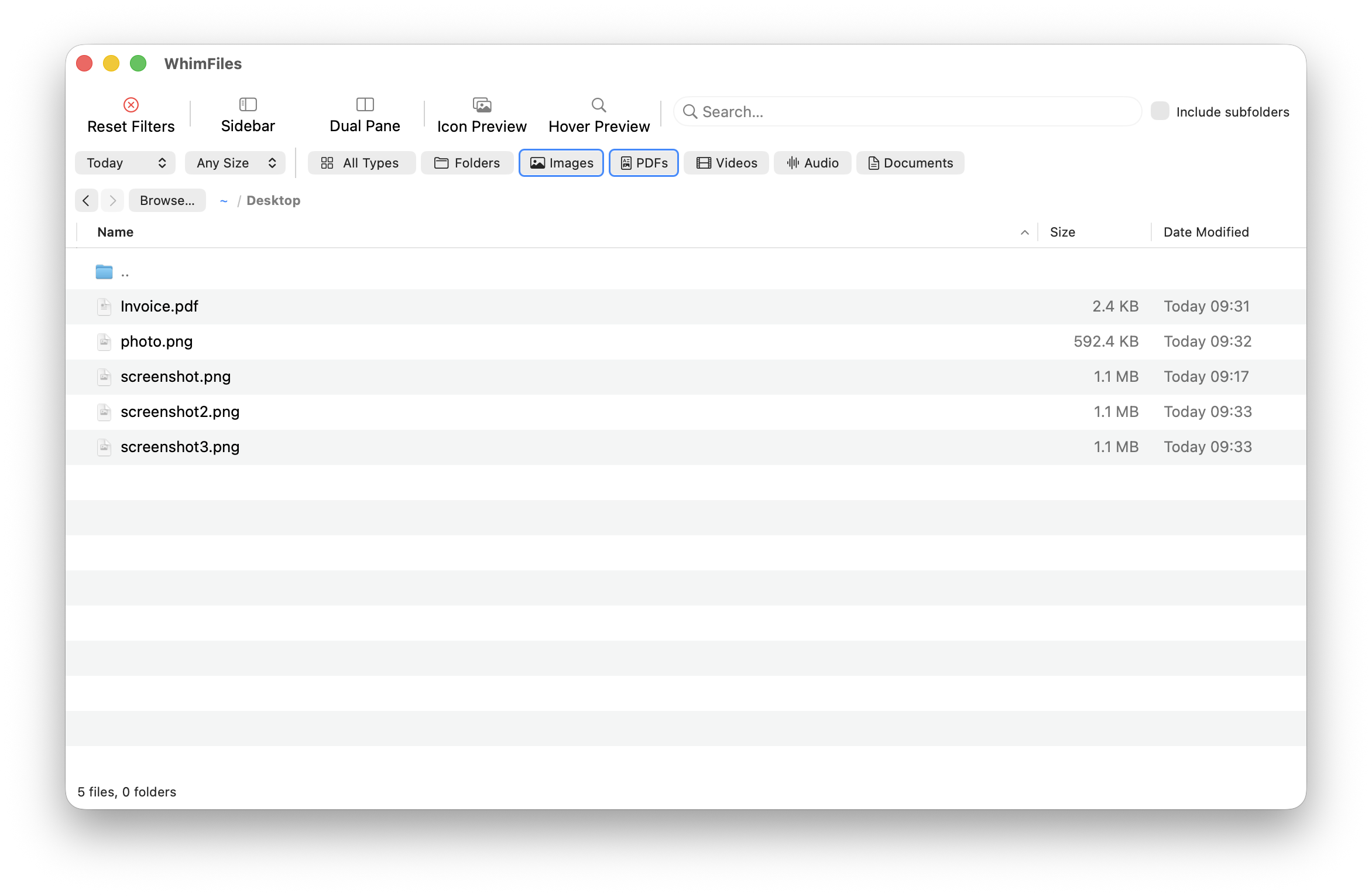
Same cleanup, different tool:
- Open Downloads.
- Stack filters instead of sorting. Images, older than six months, over 5 MB. Or PDFs from this year. Or a couple of extensions you type in yourself.
- The list narrows as you type. Switch on recursive search and it reaches into every subfolder too.
- Hover an image or a PDF for a large floating preview, or hit Space for Quick Look and arrow through the whole filtered list.
- Open dual pane. Downloads on the left, the folder you are filing into on the right, and files cross over in a single action.
- Batch rename whatever you keep: find and replace, sequential numbering, prefixes and suffixes, case changes, with a live preview before anything is written to disk.
- Convert HEIC, WebP or AVIF images to JPG or PNG straight from the right-click menu.
- Press ⌘G and type a few letters of a path to jump anywhere, which matters when the folder you are filing into sits five levels deep.
Filtering runs against the live file list rather than a background index. There is nothing to rebuild, and nothing goes stale while you work.
Other messy folders worth the same treatment
Downloads is the worst offender, but the habit transfers:
- Asset libraries. Sources on one side, exports on the other, filtered down to the file type you need right now.
- Camera and iPhone dumps. Filter by date range, look at the shots before anything goes into Photos, convert HEIC on the way past.
- Project folders and external drives. Recursive search plus folder size calculation makes a 200 GB drive navigable again.
- Keyboard-first workflows. Command palette, fuzzy path jumping and full keyboard control, for anyone who resents reaching for the trackpad.
Worth knowing before you install anything: the trial makes no network requests at all, the paid version only checks for updates, and the app is native on Apple Silicon with macOS 12 or later.
How to keep the Downloads folder clean
One cleanup buys you a couple of months. Habits buy you longer:
- Treat Downloads as an inbox rather than a filing cabinet. Empty it on a schedule, or right after any session where you grabbed a lot of files.
- If the default location is the real problem, change it. Both Safari and Chrome can ask where to put each file instead of dumping everything in one place.
- Bookmark the folders you file things into, so moving something is one click rather than a hunt.
- Run one filtered pass at the end of a project, before you archive it and forget what any of it was.
A spotless folder was never the point. The point is opening Downloads, finding the thing, and getting on with the rest of your day. Ten minutes now, five minutes a month after that.
Try the free 30-day trial of WhimFiles if you want the filtered version of this cleanup. It is fully featured for the whole 30 days. One-time purchase after that, no subscription.